Showing posts with label asterisk. Show all posts

Monday, November 12, 2007

Use the Linksys SPA922 as a Remote Extension

Last time I mentioned that I had used the Linksys SPA922 IP Phone as the "handset of choice" for phones. I also indicated that I wanted to have one as a remote extension -- i.e., it has a standard extension number, is part of the PBX system, can make and receive calls, etc., but is physically outside of the network.

This turned out to be relatively easy, once I figured out the firewall settings.

Setting up a remote extension using Asterisk/Trixbox is not that difficult, and consists of three basic steps:

1) Create the extension in Trixbox
2) Make some firewall modifications on the trixbox end
3) Plug in and configure the remote extension itself (i.e. the physical phone)

These steps are explained in more detail below:


Create the Extension in Trixbox
First we need to have an extension to play with, so we'll log onto our Trixbox installation using our favourite web browser, and choose "FreePBX" from the "Asterisk" menu. This pops up a new browser window (or tab) and allows us to create a new extension, among other things. Choose "Setup" from the top menu, then "Extensions" from the menu on the left, and create a new SIP extension. Fill in values similar to the ones below, substituting where appropriate for your information. For example, a "secret" of "verysecret" is probably not a good idea.
Make certain that you have "nat" set to "yes".
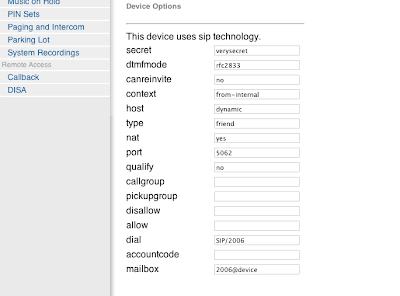
The only other thing we need to take care of within Trixbox is a tiny modification to the sip_nat.conf file. Again, we can do this using our web browser. Close the browser window with FreePBX running, and you should be back in the Trixbox admin window. Choose "Config Edit" from the "Asterisk" menu, and then scroll down until you find "sip_nat.conf". In a default installation, it is empty. Put in values like the following:
extern_ip=xxx.xxx.xxx.xxx
localnet=192.168.0.0/255.255.255.0
The first line, extern_ip, is the external (public facing) ip address of your Trixbox. Note that you probably don't have one, so instead put the public IP of whatever router, gateway, etc. you use to get access to the outside world.

The second line, localnet, describes the subnet that your Trixbox installation lives on.
Now, reload your configurations in Trixbox, and we are ready to configure our firewall.

Firewall Modifications

We need to make some modifications on the Trixbox end of the network (i.e. not at home, if that's where your remote extension is, but on the the end of the connection where your Trixbox PBX lives). Specific modifications will vary depending on what you are using for a router/gateway, but in general there are only a few things to change. I am using a Linksys machine as the external gateway, so I made changes as follows:


In essence, forward the following to your Trixbox machine:

5004-5082 udp
16384-16482 udp
10001 - 20001 udp
4569 udp (optional, and only for IAX2 units; ignore if you are just using sip)

Make these changes, and we are ready to set up the phone itself.


Configure the SPA922 IP Phone
As before, I simply unpacked the phone, found a place for it on my desk at home, and plugged it in. After a few seconds, it found itself an IP address and did its best to find dial tone. Naturally, it failed, but I did appreciate the effort.

All configuration on the SPA922 can be done with a web browser... but you need to know what IP address to connect to. After it has powered up, click on the "menu" button on the handset. It looks like a dog-eared piece of paper, just below the voice mail button. Now use the navigation button (big circle with four arrows) to scroll down to Network, and click the select soft button (leftmost, just below the LCD. Its label is part of the LCD). You'll see your phone's IP address displayed on the LCD. Mine was set to 192.168.2.149.

So, fire up your web browser, and go to http://192.168.2.149, or whatever IP address your phone has. You'll see the Linksys screen. Click on "Admin Login" in the upper right hand corner, then "Advanced." Note that by default the phone ships with no password for the admin tool; please remember to change that at some point (like right now).

Click on the Ext1 tab, and scroll down to NAT Settings. Set NAT Mapping Enable and NAT Keepalive Enable to "YES". Scroll down to SIP Settings. Set SIP Port and Ext SIP port both to 5062.

Next scroll down to the "Proxy and Registration" section. Set "Proxy" and "Outbound Proxy" to the external IP address used by your Trixbox machine. Set "Use Outbound Proxy" and "Use OB in Dialog" to "Yes".

Scroll down to Subscriber information, and set User ID to the extension number for your phone, and password to whatever "secret" you set up in Trixbox for this extension.

Now scroll down to Audio Configuration. Set DTMF Tx Method to "Inband+INFO". (Note: I had to do this to get most IVRs to work, i.e. when I call someone and have to press 1 for this, 2 for that, and so forth. YMMV).

Click on "Submit all Changes."

Now, go to the SIP tab. Scroll down to RTP Parameters. Set RTP port min to 16384. Set RTP port max to 16482. Now, scroll down to NAT Support Parameters. Set Handle VIA received, Insert VIA received, Substitute VIA address, Handle VIA rport, and Insert VIA rport all to "Yes."

Save your changes, and in a few moments, you should be able to make calls!

Sunday, October 21, 2007

Alternative to Trixbox coming soon

The folks over at nerdvittles.com have an interesting project in the works -- PBX in a Flash. Apparently they (and others) are getting a bit fed up with the direction that Trixbox is taking; on the nerdvittles site, the authors put it this way: "suffice it to say that it’s just gotten a little too proprietary, too closed, and too commercial for our open source, puritanical tastes."

So they decided to take matters into their own hands, and are working on something called "PBX in a Flash". From the site:


Our up front promise is to keep the project open, participatory, reliable, and fun. After all, that’s what the Asterisk revolution was and is all about. The plan is to provide a free ISO-based offering for home or office use that will run on a dedicated Linux machine. There also will be a VMware image that will run on a Windows desktop. And, for the Mac desktop, we’ll provide both a VMware and a Parallels image.

I'll be interested to see where this goes, and intend to give it a try.

Trixbox and the Linksys SPA922

I got tired of trying to figure out how to wire my office such that we could continue to use the analog phones we have with the Trixbox setup I recently installed. Accordingly, I bit the bullet and ordered some Linksys SPA922 phones as a trial run. These are true IP phones, meaning that all they need hooked up to them is an ethernet cable (and a power adapter, if you are too cheap to purchase the Power over Ethernet adapter).

These are wonderful phones.

Setting it up on the internal network was absolutely trivial. Unpack it, hook up the handset, run an ethernet cable to it, and tell it what extension id and password you want, and you are finished. In fact, it's so easy to set up that I really can't see the point of posting the details here.... the quick start guide that comes with the phone is self explanatory, and so simple my 10 year old daughter could probably figure it out.

As a bonus, the various "star key" combinations are pre-configured to work with Asterisk, so I didn't even have to set those up. Right off the bat the call forward, do-not-disturb, and voice mail keys worked.

Great phone.

Next, I'm going to try to hook one of these up as a remote extension, and have an office phone at home as well. My understanding is that this would be easier with an IAX2 phone, but I don't have one of those, so I'll figure out how to do this with what I have at my disposal.

Thursday, October 18, 2007

Using the Vonage SoftPhone with Asterisk

As promised, here are some more details about setting up an Asterisk system for a small office/home office. Last time we got a single hard line up and running, and this time we are going to add true VOIP functionality to our system.

You may have been reading about Vonage in the news a bit lately. Yes, they are under some serious attacks by the established telcos, but they offer a wonderful service -- easily the best quality VOIP I have tried. More to the point for this exercise, Vonage offers a service that interfaces nicely with Aterisk -- the softphone.

Vonage offers a softphone option for existing customers -- in Canada, at least, it's an add on to an existing service, and costs around $15.00/month. I understand it is less expensive elsewhere, but even at $15.00, it's fairly cheap.

I wanted to have my outgoing calls on the office network not be limited to the number of hard lines from our local telco; voip is, of course, a wonderful alternative to this, and (at least around here) Vonage's offering is every bit as good as a telco. At least none of my customer's have noticed the difference...

Here's how to set up the Vonage softpone as a trunk (inbound and outbound) on Asterisk (specifically on Trixbox).

1) Add a trunk. In FreePBX, choose Setup -> Trunks -> Add Trunk. Name the trunk whatever your softphone number is, i.e. 19995551212.
2) Outbound caller id - this appears to no have effect, but I set mine up anyway, i.e. "Caller id Inc" <19995551212>
3) For "Peer Details" I used this:

allow=all
auth=md5
canreinvite=yes
defaultexpirey=120
dtmfmode=rfc2833
fromdomain=sphone.vopr.vonage.net
fromuser=[vonage phone number]
host=sphone.vopr.vonage.net
insecure=very
nat=yes
port=5061
secret=[secretgiventomebyvonage]
type=friend
username=[vonage phone number]

Note that "secret" and "username" must be changed to whatever you got from Vonage. Also, the "square brackets" are not part of the peer details.

4) Under User Context, I entered this:

auth=md5
canreinvite=no
context=from-pstn
dtmfmode=inband
fromdomain=sphone.vopr.vonage.net
fromuser=[vonage phone number]
host=sphone.vopr.vonage.net
insecure=very
nat=yes
port=5061
secret=[vonage password]
type=friend
username=[vonage phone number]

5) For register string, I used this:

[phone]:[secret]@sphone.vopr.vonage.net:5061

For example, if your phone number is 1-999-555-1212 and your secret is abcd1234, you would enter:

19995551212:abcd1234@sphone.vopr.vonage.net:5061

Save, and your trunk is now active. Next, we need to add outbound routes.

Last time around, we added a context for dialing out by pressing 9. We are going to modify that so that by default, all outbound calls first go out through vonage, and if that fails or is too busy, then use the hard line. This is trival.

Modify your outbound route "0 9_Outside". Scroll down to Trunk Sequence, and use the drop down menus to select the first as being vonage, and the second as your hard line. Save, and you are done.

That was easy.

Tuesday, October 16, 2007

Asterisk, Trixbox, and the Linksys SPA 3102

I have finally completed my Asterisk installation, and have it working. Surprisingly, it was fairly painless. As I had indicated in an earlier post, I intended to get it working using a single incoming analog line, a Linksys Sipura 3000, and a fairly elderly PC. Much to my surprise, I was able to procure a 1.8 GHz Pentium IV machine for less than $200.00, and it works very, very well.

The Linksys Sipura 3000 had been replaced by the SPA 3102 by the time I got around to ordering one, so I bought one from http://www.voipdepot.ca (cheaper shipping, and overnight at that!) It arrived, and here's what I did:

Install Trixbox
This is trival. I downloaded the version 2.2.4 ISO from http://www.trixbox.org, burned a CD and inserted it into the drive on the PC I am using as a PBX. I rebooted, answered a few (obvious) questions, and let it do its thing. Two additional automatic reboots later, Trixbox was installed.
By default, the Trixbox install uses DHCP to get an IP address, and that's no good, so I logged in as root and set the IP address to a static one, so I'd know how to get there. Do this by typing "netconfig" at the prompt, as root, and give it an IP address. Now, reboot one final time.

Configure Trixbox
All configuration is done from a web browser. Assuming you chose 192.168.0.76 as the IP address for your Trixbox machine in the previous step, just fire up your favourite web browser and go there (http://192.168.0.76). We need to get to admin mode, so click on the "[ switch ]" link in the upper right hand corner. You will be prompted for a password. The default username/password combination is "maint/password". We'll change that later.

Now, Choose "FreePBX" from the "Asterisk" menu, and we are ready to start. A new browser window (or tab, depending on your browser) will open. Click on "Tools" in the top menu, and then "Modules" from the menu on the left. Click on "Check for updates online." Click on "Download all". Install all modules.

Now, we need to set up some trunks. In my situation, I have one hard line coming in (a physical telco line) and I'm using Vonage's softphone for an addtional, pure VOIP line. We'll do the hard line first. It's connected using the SPA 3102.

SPA 3102
This is fairly easy to set up. Plug it in, and connect to it using a crossover cable and a PC/Mac/whatever. Go to its built in web browser, and give it a static IP address. I chose 192.168.0.234. The web based admin is typical Linksys -- easy to use. Assuming the IP address you chose is the same as mine, go here: http://192.168.0.234/admin/

Note that there are no passwords set on the SPA 3102 by default. You'll probably want to change that.

I made the following changes to the SPA 3102's default configuration:

1) Remove all "Vertical Service Activation Codes" under Voice/Regional. They conflict with the codes we will use in Asterisk.
2) Under Line 1, Proxy/Registration, I set the Proxy to 192.168.0.76 (the IP of the trixbox machine)
3) On the same screen, I set DTMF Tx Method to Inband+Info
4) On the same screen, I set up the info for the extension we're going to set up in Asterisk shortly -- Display Name = your name, password to whatever you want for a password, User ID = the extension number you are going to assign to the phone hooked up to the SPA 3102.

All done.

Setting up Trunks
Now, let's set up a trunk for this in Asterisk. Back on the FreePBX window in your browser, click on "Setup" on the top menu, then "Trunks" on the left menu. There is a ZAP trunk there, but we'll ignore it. Add a SIP trunk.

Fill in the values as follows, modifying for your particular information as required:

Outbound caller id: "19995551212"
This is your caller id information.

Maximum channels: 1
Trunk Name: SPA3102
Peer Details:

allow=ulaw
canreinvite=no
context=from-pstn
disallow=all
host=192.168.0.234
insecure=very
nat=yes
port=5060
qualify=yes
type=peer

User Context: SPA3102_In
allow=ulaw
canreinvite=no
context=from-pstn
disallow=all
host=192.168.0.76
insecure=very
nat=yes
port=5060
type=user

Now save the info. Okay, we have a trunk. Let's add a method of dialing out to the outside world.

Adding Outbound Routes
Click on "Setup" in the top menu, then Outbound Routes in the left. You probably have a route called "9_Outside", so let's use that. If not, add one and name it 9_Outside.

All we have to do here is specify a dial patter. I want to use "dial 9 for an outside line", so I have this in the dial pattern box:
9|.
That was easy. Now pick SIP/SPA3102 as your trunk, and save your changes.

Next, we need to have a method of receiving calls, so let's add an extension.

Adding an Extension
This is trivial. Click "Setup" in the top menu, then "Extensions" in the left menu. Add an extension. Add a SIP extension. All you really need is the extension number, but voice mail is nice, so scroll down and add that info. Be sure to specify a password for voice mail, and for the extension! If you added extension info to the SPA3102 when you set that up, you might as well enter the same information here....

Save, and you are good do go. Now let's add an inbound route, so we can receive calls.

Adding Inbound Routes
This is fairly easy as well. Just click on "Setup" in the top menu, then "Inbound Routes" in the left menu. Add a route. We are just going to have one for now, and it will handle all calls. Just add a route with the DID info (and everything else) set to defaults (empty) and then under "Set Destination" (at the bottom of the screen) choose "Core" and select the extension you set up a few moments ago.

Change the Passwords!
You really should change the passwords for Trixbox. You will notice a couple of rather profound warnings in the web based admin tool, with links to how to go about changing them. I strongly recommend you do so.

Next time, I'll give details on how to hook Vonage's softphone up , as well as the Linksys SPA922 IP Phone. We'll configure it for use within the network, as well as an external (remote) extension.

Tuesday, January 09, 2007

Trixbox 2.0

While browsing around today I noticed a post on distrowatch.org, indicating that Trixbox 2.0 was released a few days ago. The press release is available here. According to the press release, Trixbox is a CentOS based distribution that includes a completely functional, ready to customize install of Asterisk. It can be installed in less than 15 minutes, supports multiple languages and provides increased reliability and stability, flexible user customization, and support for a wide-range of hardware vendors.

Given that I am planning to do an @home install of Asterisk, this seems like a logical approach. I am still waiting to order the necessary hardware to complete my installation of Asterisk at home, but could use one of the many "softphones" to play with this.

I have managed to cobble together some hardware from spare parts, and will attempt an install of this over the next few days. It is entirely possible that my wife may throw me out for cutting of her phone for hours at a time... but hey, she has a cell phone ;)

Saturday, December 23, 2006

Asterisk via Live CD

While waiting for my various components to arrive for the Asterisk install, I decided to see if I could simply play around with soft phone technology, experiment, and so forth. I didn't actually accomplish anything so far, but I did stumble across this Live CD Asterisk product. In case you are unfamiliar with the concept, a Live CD is a rather nifty little thing -- it's a complete, task specific operating system on some bootable media (typically a CD ROM or DVD ROM, but you can use it on a compact flash card, USB key, etc. -- anything that has sufficient storage space and can boot your PC). This is a complete, fully functional Asterisk install on a CD ROM. I actually downloaded it, burned it, and used it to boot my PC. It worked -- at least I think it did. Once again, I'm waiting for some gear to arrive to be able to complete the install and see how it works.

Saturday, December 09, 2006

Asterisk Update

It's been awhile since I have been able to post here -- November and December are typically very busy for me, and I have little time for extracurricular activities. However, I have managed to do some work on the Asterisk install. I've installed the base code on my backup server, which is now running the latest build of CentOS. It went smoothly, largely because I am unable to test anything as of yet -- I have not picked up the hardware necessary to complete the installation. I've decided to go with the Linksys Sipura SPA 3000 for my hardware requirements, for a couple of reasons. First, the box running Asterisk is a bit elderly, and having the FXO/FXS in a stand alone box will reduce the processor requirements; and second, the price is much better this way. I can pick the box up for as little as $115.00 CDN.

I hope to order one this month, and begin testing the application.

Tuesday, November 21, 2006

Interesting Add On for Asterisk

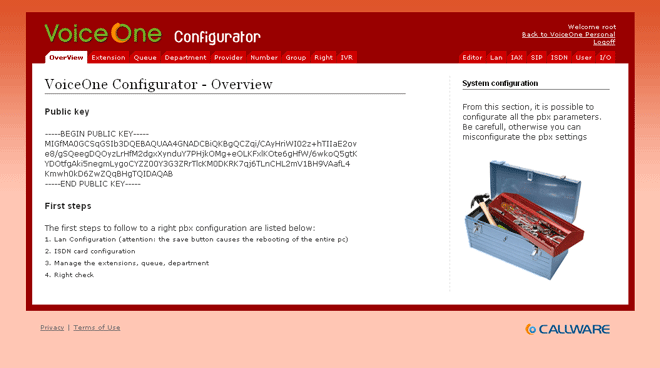
While planning for my Asterisk install, it occurred to me that someone has almost certainly already built and released an open source project for web based administration of the server. While I have by no means completed my research into this topic, I did stumble across a very nice package called VoiceOne. This seems to be almost exactly what I will need.

Here is a sample screenshot of the application. It looks very promising.

Asterisk update

I've been doing some more reading about the hardware requirements and options for setting up an Asterisk PBX, and came across this information:

"If you build an Asterisk system without the need for PCI cards, you have a much greater set of choices for what kind of computer to run Asterisk on. If things are configured correctly, the ATAs are handling all of the load for coding/decoding digitized streams of voice to/from analog. You have a better chance of being able to successfully share a computer for asterisk and some other tasks. There are some great choices in small form factor computers. It's even possible to run Asterisk on a Linksys WRT54GS, but that box is a bit too underpowered for a full featured Asterisk configuration. Linksys also sells ATAs with firmware from Sipura. Now it's been announced that Linksys is buying Sipura. I haven't seen any reports on hacking the version of the WRT54G with the embedded ATA yet, but I'm hoping we might see some pretty cool things soon."

Please note that I fixed some spelling errors in this prior to putting it here. I can't help it; the English prof in me takes precedence over the nerd from time to time. Anyway, it sounds a lot like the external box (i.e. the Linksys - Sipura SPA-3000) might be a better solution given that I'm using older hardware for my home installation of Asterisk. After a bit of browsing, I found an excellent price on one here, in Canada. I'm tempted to try this using my Linksys WRT54GS router, but since that's currently connecting my antenna to the Internet, I might be asking it to do more than it can.

Monday, November 20, 2006

Planning the Asterisk Install

After reviewing the basic instructions found here, it would appear that I need to purchase PCI cards with Foreign eXchange Station (FXS) ports, and with Foreign Exchange Office ports. Telephones are connected to the FXS ports, and phone lines are connected to the FXO ports.

Apparently bad things happen if you get this wrong. FXS ports provide power and generate ring signals, while FXO ports receive power and ring signals. I'll have to be careful with that.

I'm also going to need an Analog Telephone Adaptor, or ATA, that acts as a gateway between my digital network (the Asterisk box) and plain old analog phones and phone lines. Fortunately, the most common ATAs offer FXS ports, so there is less hardware to buy (and money to spend).

Apparently there has been considerable success using the TDM400P with a couple of daughter cards for a self contained PC to handle everything. Or, we could go with the Sipura 3000 (a stand alone box that you connect your Asterisk machine to via ethernet). I guess it all comes down to price.

Pricing out the first option, the Digium TDM400P, doesn't look too bad. I found a decent price here, at voipdepot.ca.

My, what a wonderful new crop of acronyms to learn. I connect from the CO to my FXO, then go through my ATA to FXS to connect to a phone and get dial tone. What fun.

Sunday, November 19, 2006

Why install Asterisk at home?

I've had a number of people ask me why I would be interested in installing Asterisk PBX at home. Well, there are a number of reasons. First, I pay for voice mail and a few other features on my home phones, and it costs me a bit of cash every month. The PBX will pay for itself inside of a year. The main reason, though, is functionality. Here are some of the features that are of interest to me:

  • Sophisticated Voice Mail system - This can provide a mail box per person, that can be deliver notification by e-mail. Web based access to your voice mail is also available.
  • Interactive Voice Response IVR system - You can present callers with a menu, which can be particularly useful if you have more people in the house than you have incoming phone lines. "Press 1 for Him, Press 2 for Her, Press 3 for Kid No. 1, Press 4 for Kid No. 2"...
  • Control over which phones ring, and at what times.
  • Functions as an Intercom - Place in house calls.
  • Call routing - Route incoming calls by Caller ID.
  • Multi-line functionality - if you need more than 2 incoming lines, you will quickly discover that phones that handle more than two lines are much more expensive than 1 or 2 line phones, and there isn't very much selection available.
  • Call Detail Reports - for attempting to gain some control over costs, and/or teenagers, etc.
  • Check your voice mail over the web.
  • Email notification of voice mail.
There are many more features, but even this brief overview shows the kind of control you can have.

Plus, it's cool. And although I do hate to admit it, there is a fairly wide "geek" streak in me. It rears its ugly head sometimes.

Saturday, November 18, 2006

Progress with Asterisk

Asterisk logo
I've made some progress with my Asterisk PBX planning. As I indicated earlier, I had to do a re-install of the operating system on my backup server (From FreeBSD to CentOS) first, and I've managed to get that out of the way. I've also developed a strong appreciation and respect for the "yum" package manager. It's very good, and as easy to use as ports on FreeBSD.

Anyway, I've begun the work necessary to build a simple PBX system at home, using Asterisk. I figure I'll practice at home, and if it works well, eventually migrate my business onto the same system. At this point, it's largely reading and research, as I have to (gasp) actually purchase some hardware in order to make this work.

Apparently, I'm going to need a PSTN interface card.

For those not in the know (like me, up until recently), PSTN stands for Public Switched Telephone Network. Also, POTS is Plain Old Telephone Service. And in case you were wondering, PBX stands for Private Branch eXchange. Wikipedia has some great info on the history of the PBX.

I'm sorry for the digression.

A PSTN interface card is the basic device that permits you to connect analog or digital phone lines (the ones that you use at work or at home to connect regular phones to) to your PBX. Once you've done that you have access to all the nifty features that Asterisk offers, such as call parking, voice mail, and so forth.

There is a helpful site found here that details all of the various cards known to work well with Asterisk. I'm going to have to do some serious price comparison for awhile, and find one known to work well with my system.

This is going to take awhile.

Thursday, November 16, 2006

Asterisk - VOIP for the handyman

While configuring my backup server, it occurred to me that this would be an ideal time to try working with Asterisk, the free VOIP solution available for Linux. Naturally, this entails re-doing much of what I have already done with Samba, as I chose FreeBSD as my operating system. I'll have to strip it and go with CentOS instead. Sigh.

The Asterisk site claims that Asterisk is a complete PBX in software. It runs on Linux, BSD and MacOSX and provides all of the features you would expect from a PBX and more. Asterisk does voice over IP in many protocols, and can interoperate with almost all standards-based telephony equipment using relatively inexpensive hardware. However, my research has indicated that it runs best on Linux, so Linux it is.

I'll keep you posted. And this time I'll take notes.